What Does Share Focus Status Mean on iPhone?
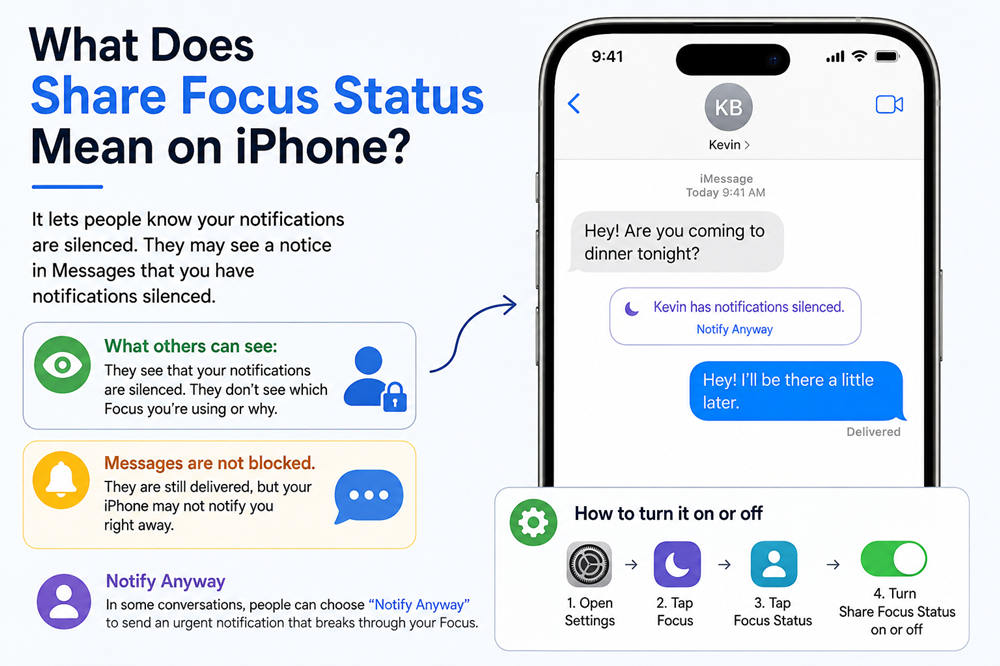
Share Focus Status is an iPhone setting that tells people your notifications are currently silenced. In Messages, someone contacting you may see a notice saying that you have notifications silenced.
The feature does not tell them why you are unavailable or which Focus mode you are using. It simply lets them know that you may not see their message right away.
What Is Focus Status?
Focus is an Apple feature that helps reduce distractions by controlling which notifications can reach you. Common options include:
- Do Not Disturb
- Personal
- Sleep
- Work
- Driving
You can also create a custom Focus for activities such as studying, exercising, reading, or spending time with family.
Each Focus can have its own rules. For example, Work Focus might allow messages from coworkers while silencing social media notifications. Sleep Focus might silence nearly everything except calls from close family members.
When Share Focus Status is enabled, supported communication apps can show other people that you have silenced notifications.
What Can Other People See?
People who message you may see a simple notice such as “Notifications Silenced.”
They cannot normally see:
- Which Focus mode you turned on
- Why you are using Focus
- What you are doing
- Your location
- Which people or apps you have allowed
- How long the Focus will remain active
For example, someone may know that your notifications are silenced, but they will not know whether you are sleeping, working, driving, or taking a break from your phone. Focus Status shares that notifications are silenced rather than the name of the active Focus.
Does Share Focus Status Block Messages?
No. Messages are still delivered to your iPhone.
Focus changes how you are notified, not whether the message reaches you. Depending on your settings, your phone may suppress the sound, vibration, or notification banner. You can still open Messages and read the conversation whenever you choose.
Share Focus Status also does not:
- Block the sender
- Reject their message
- Mark the message as read
- Automatically send a reply
- Tell the sender when you will respond
It only helps the sender understand that you may not notice the message immediately.
What Does “Notify Anyway” Mean?
In some supported conversations, the sender may be able to notify you anyway when something is urgent.
Using this option allows an important notification to break through the current Focus. It does not permanently give that person permission to bypass every future Focus session. Apple explains that a person who sees your Focus Status may still choose to notify you when necessary.
Notify Anyway may be appropriate for situations such as:
- A family emergency
- A sudden change of plans
- An urgent work issue
- A transportation problem
- Important time-sensitive information
It should not be used for every ordinary message, since that would defeat the purpose of having Focus turned on.
How to Turn Share Focus Status On or Off
To manage the setting on an iPhone:
- Open Settings.
- Tap Focus.
- Tap Focus Status.
- Turn Share Focus Status on or off.
When sharing is enabled, you can choose which Focus profiles are allowed to display your status. For example, you may want to share it while using Sleep Focus but keep it private when using a personal or custom Focus.
Turning off Share Focus Status does not disable Focus itself. Your phone can continue silencing notifications without telling other people.
How to Stop Sharing Focus Status With One Person
You may be able to stop sharing your status with one contact without turning the feature off for everyone.
To check the setting:
- Open Messages.
- Select the person’s conversation.
- Tap the contact’s name or icon at the top.
- Look for Share Focus Status and turn it off.
The option may depend on the conversation, device settings, and software version. Apple notes that Focus Status can be managed for specific people through their contact information.
Share Focus Status vs. Share Across Devices
These two settings sound similar, but they have different purposes.
Share Focus Status tells contacts that your notifications are silenced.
Share Across Devices keeps compatible Focus settings active across Apple devices signed in to the same Apple Account.
For example, turning on Work Focus on your iPhone may also activate it on your iPad or Mac. This helps keep your notification settings consistent while you move between devices.
Share Across Devices can also explain why your Focus appears active when you did not turn it on directly from your iPhone.
Why Is My Focus Status Showing Unexpectedly?
A Focus can turn on automatically, so you may not always realize that it is active.
Common triggers include:
- A set time of day
- Your Sleep schedule
- Arriving at a location
- Opening a particular app
- Driving detection
- Activation on another Apple device
- A schedule you created earlier
To check your automatic settings, go to Settings > Focus, select the relevant Focus, and review its schedules and triggers.
You should also check Share Across Devices. When it is enabled, a Focus activated on another Apple device may affect the status shown on your iPhone.
Should You Share Your Focus Status?
Keeping the feature on can prevent misunderstandings. Instead of assuming that you are deliberately ignoring them, people can see that your notifications are silenced and that your reply may be delayed.
It can be useful while you are:
- Sleeping
- Working
- Studying
- Driving
- Attending a meeting
- Spending time away from your phone
However, you may prefer to turn it off if you want more privacy or if people frequently bypass your Focus for nonurgent messages.
There is no right choice for everyone. You can share the status, limit it to certain Focus profiles, or disable it for particular contacts.
Final Answer
Share Focus Status means your iPhone can tell people that your notifications are silenced. Their messages still reach you, but you may not receive the usual sound, vibration, or banner.
The feature does not reveal which Focus you are using or why it is active. It simply helps people understand that you may respond later.